
Posts

Dolphin Data Lab offers complete and professional data recovery tools and solutions to data recovery engineers all over the world.

With Dolphin data recovery tools, engineers can recover lost data from the following patient storage devices:

01: SATA/PATA/Portable/USB hard drives with firmware failure;
02: SATA/PATA/Portable/USB hard drives with bad sectors/weak heads;
03: SATA/PATA/Portable/USB hard drives with physical head failure;
04: SATA SSD firmware failure;
05: SSD with bad sectors;
06: DVR/NVR/Digital Cameras/Video recorders with lost/deleted videos;
07: USB flash drives with bad sectors;
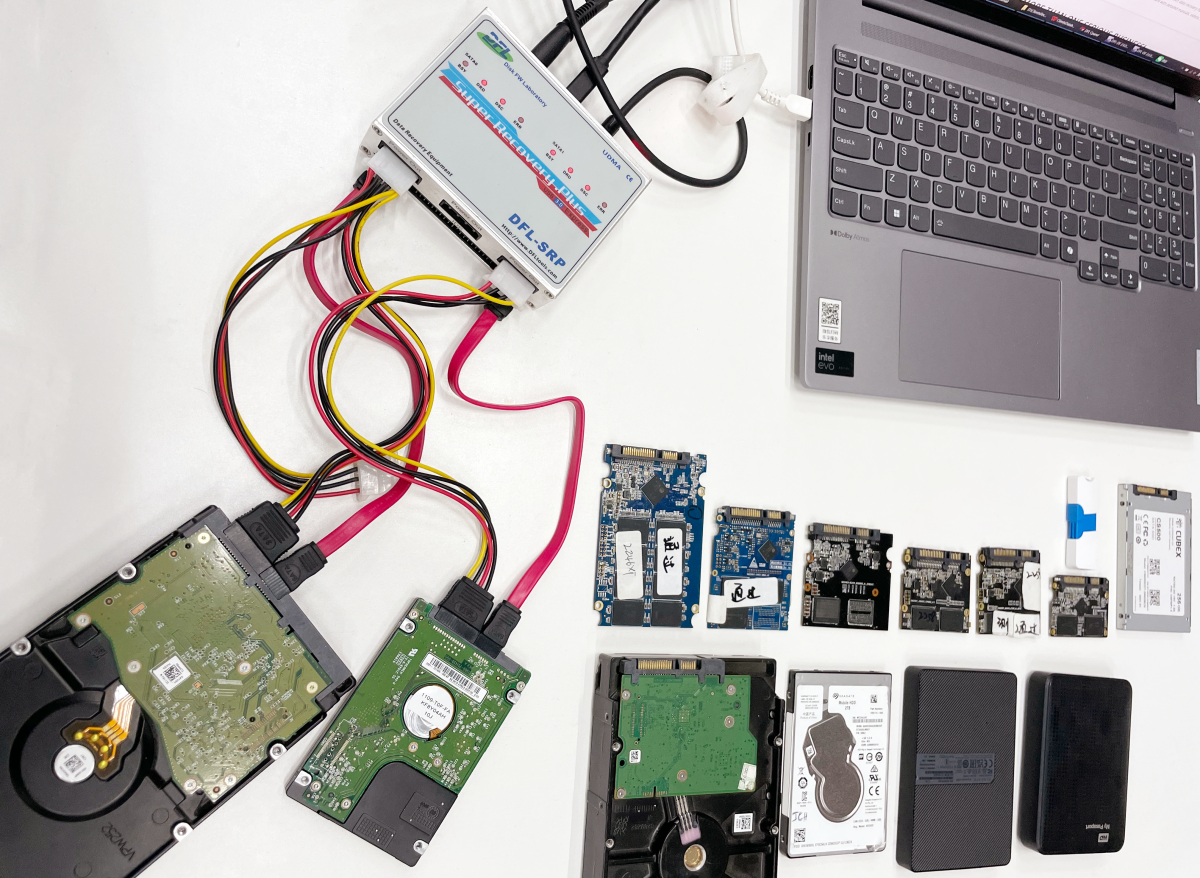
Dolphin Data Lab offers the following tools to recover lost data from above patient data storage devices:

01: DFL-SRP Portable All-in-one Data Recovery Equipment including SATA SSD firmware repair software;
02: Dolphin DVR Video Forensic Data Recovery Software;
03: Dolphin All-in-one Data Recovery Adapter USB3.0 Version;
04: Dolphin Head and Platter Swap and Clean Suite.Pro;
05: Hard Drive Ramp Toolkit Pro.;
06: Data Recovery Training U-disk(Free data recovery training docs and videos for Dolphin users with above tools only)

Watch the video demos on how Dolphin Data Recovery Tools work to get lost data back here.
My PS3111 SSD was not detected any more and I lost all the valuable data, how to recover them?
My PS3111 SSD was running very slowly and sometimes enters bluescreen and get stuck, how to get the lost data back?

Please note: to recover deleted data or formatted data from SSD is usually not possible due to the SSD trim command design, all the data becomes 0000 after the trim command is executed. Users can select to turn it off before using the SSD and then it is possible to recover the deleted/formatted data.

PS3111 SSD Firmware Repair and Data Recovery Tools:

DFL-SSD Firmware Repair Software
DFL-DDP Data Recovery Tool

PS3111 SSD Firmware Repair and Data Recovery Steps:

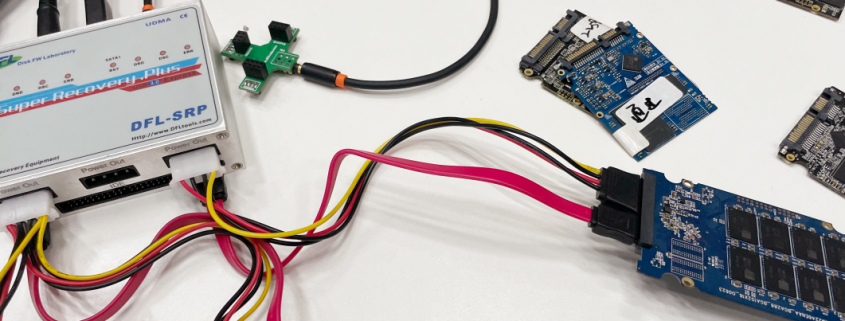
If the patient SSD is detected properly, just has some bad sectors, users can connect the SSD to DFL-SRP data recovery hardware to image or extract the lost data directly. If not detected or not ready, users need to follow the steps below:

01: Open DFL-SSD firmware repair software, select the SSD manufacturer-Phison and controller brand-PS3111 or rebranded one;
02: Double click PS3111 controller to enter software;
03: Switch to safe mode(similar function as short connection);
04: Load loader(auto detected loader and selection)
04: Create translator;
05: Click DFLDDP to enter data recovery software for file extraction or disk image.

Video Demo of PS3111 SSD Firmware Repair and Data Recovery Steps
PS3111 All 0 Data Recovery Steps

Helpful link: PS3111 Rebranded or OEM Controllers Collection

My SM2246XT SSD was not detected any more and I lost all the valuable data, how to recover them?
My SM2246XT SSD was running very slowly and sometimes enters bluescreen and get stuck, how to get the lost data back?

Please note: to recover deleted data or formatted data from SSD is usually not possible due to the SSD trim command design, all the data becomes 0000 after the trim command is executed. Users can select to turn it off before using the SSD and then it is possible to recover the deleted/formatted data.

SM2246XT SSD Firmware Repair and Data Recovery Tools:

DFL-SSD Firmware Repair Software
DFL-DDP Data Recovery Tool

SM2246XT SSD Firmware Repair and Data Recovery Steps:

If the patient SSD is detected properly, just has some bad sectors, users can connect the SSD to DFL-SRP data recovery hardware to image or extract the lost data directly. If not detected or not ready, users need to follow the steps below:

01: Open DFL-SSD firmware repair software, select the SSD manufacturer-Silicon Motion and controller brand-SM2246XT;
02: Short connect the SSD PCB and power on and wait until the hdd gets ready(After short connection, the model is SM2246AA-8);
03: enter software and load loader ;
04: Create translator;
05: Click DFLDDP to enter data recovery software for file extraction or disk image.

Video Demo of SM2246XT SSD Firmware Repair and Data Recovery Steps

My SM2258XT SSD was not detected any more and I lost all the valuable data, how to recover them?
My SM2258XT SSD was running very slowly and sometimes enters bluescreen and get stuck, how to get the lost data back?

Please note: to recover deleted data or formatted data from SSD is usually not possible due to the SSD trim command design, all the data becomes 0000 after the trim command is executed. Users can select to turn it off before using the SSD and then it is possible to recover the deleted/formatted data.

SM2258XT SSD Firmware Repair and Data Recovery Tools:

DFL-SSD Firmware Repair Software
DFL-DDP Data Recovery Tool

SM2258XT SSD Firmware Repair and Data Recovery Steps:

If the patient SSD is detected properly, just has some bad sectors, users can connect the SSD to DFL-SRP data recovery hardware to image or extract the lost data directly. If not detected or not ready, users need to follow the steps below:

01: Open DFL-SSD firmware repair software, select the SSD manufacturer-Silicon Motion and controller brand-SM2258XT;
02: Short connect the SSD PCB and power on and wait until the hdd gets ready;
03: enter software and load loader for the first time, select any loader to load to get the ISP version(loader version of the patient SSD);
04: Power off and on and re-enter the software and load the correct loader for the second time;
05: Create translator;
06: Click DFLDDP to enter data recovery software for file extraction or disk image.

Video Demo of SM2258XT SSD Firmware Repair and Data Recovery Steps

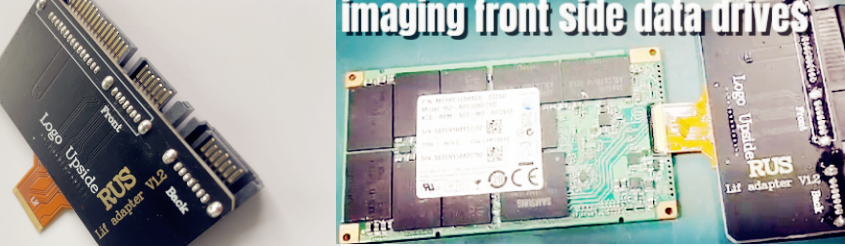
Dolphin Data Lab is now offering one new LIF SSD data recovery adapter to data recovery engineers worldwide. Engineers can easily connect the LIF SSDs to the common SATA data recovery equipment such as the DFL-SRP data recovery hardware, this adapter can work with other similar data recovery hardware too for disk imaging.

The LIF SSDs supported by this special adapter has double-layer data storage design, they are usually used within the Sony laptops, there’re data drives on the front side and also on the back side. Users need to image front drive data and back drive data and then build raid 0 to get all the data visible.

Users can order this LIF SSD data recovery adapter here.

Here is one video introduction to the LIF SSD adapter

Any question is welcome to sales@dolphindatalab.com or add Dolphin Skype ID: dolphin.data.lab