
PS3111 SSD Firmware Repair and Data Recovery Steps
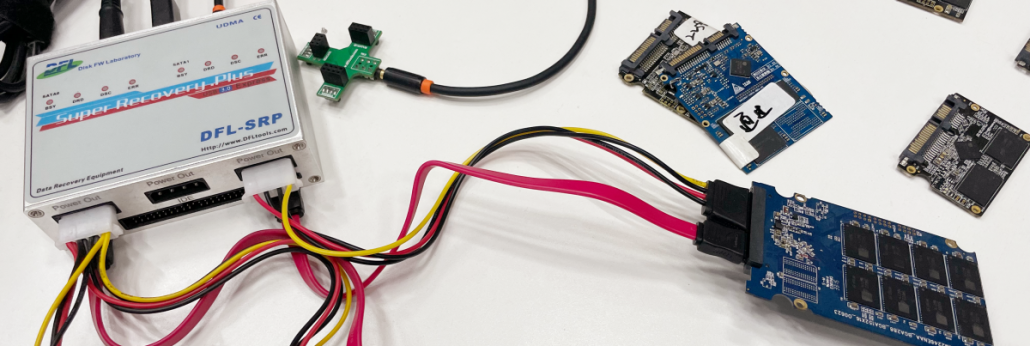
My PS3111 SSD was not detected any more and I lost all the valuable data, how to recover them?
My PS3111 SSD was running very slowly and sometimes enters bluescreen and get stuck, how to get the lost data back?
Please note: to recover deleted data or formatted data from SSD is usually not possible due to the SSD trim command design, all the data becomes 0000 after the trim command is executed. Users can select to turn it off before using the SSD and then it is possible to recover the deleted/formatted data.
PS3111 SSD Firmware Repair and Data Recovery Tools:
DFL-SSD Firmware Repair Software
DFL-DDP Data Recovery Tool
PS3111 SSD Firmware Repair and Data Recovery Steps:
If the patient SSD is detected properly, just has some bad sectors, users can connect the SSD to DFL-SRP data recovery hardware to image or extract the lost data directly. If not detected or not ready, users need to follow the steps below:
01: Open DFL-SSD firmware repair software, select the SSD manufacturer-Phison and controller brand-PS3111 or rebranded one;
02: Double click PS3111 controller to enter software;
03: Switch to safe mode(similar function as short connection);
04: Load loader(auto detected loader and selection)
04: Create translator;
05: Click DFLDDP to enter data recovery software for file extraction or disk image.
Video Demo of PS3111 SSD Firmware Repair and Data Recovery Steps
PS3111 All 0 Data Recovery Steps
Helpful link: PS3111 Rebranded or OEM Controllers Collection




Leave a Reply
Want to join the discussion?Feel free to contribute!